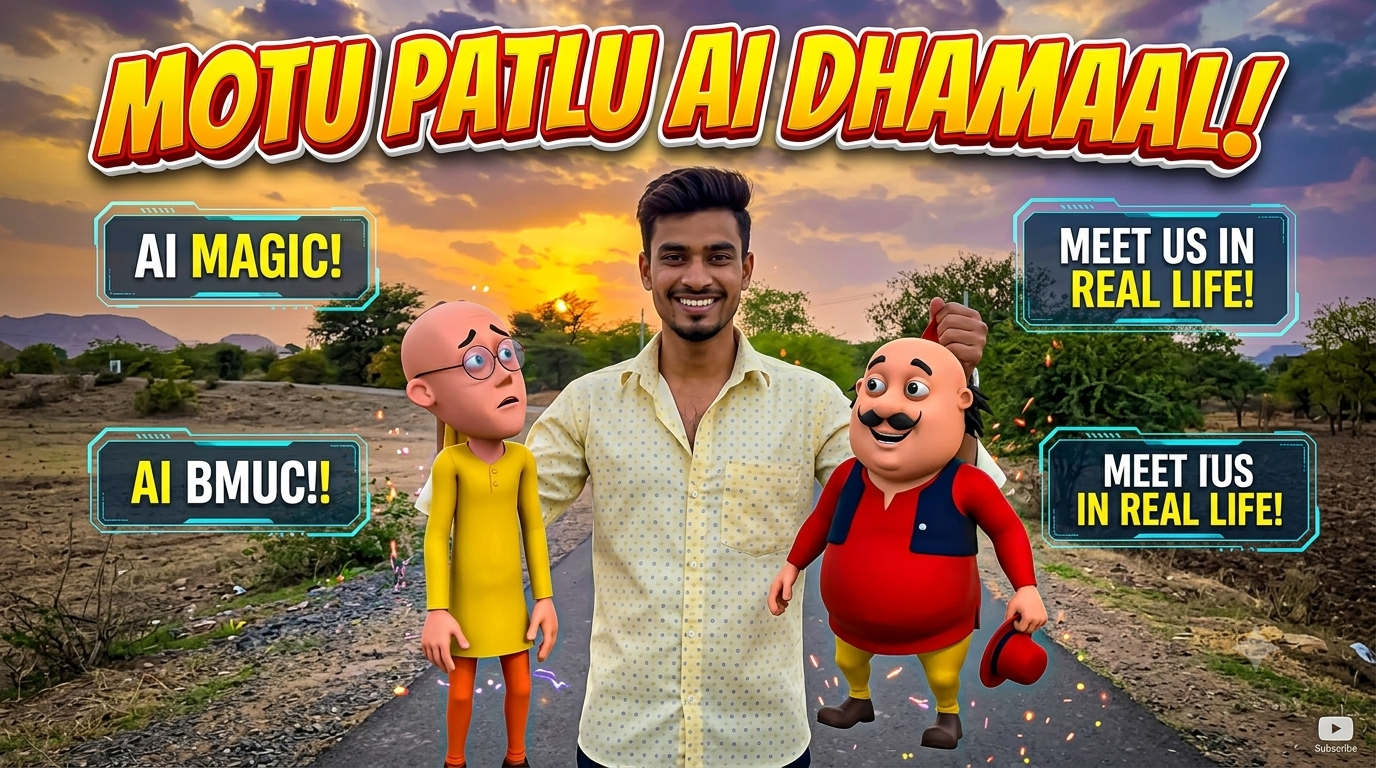
If you’ve been scrolling through Instagram Reels, YouTube Shorts, or Facebook lately, you’ve probably noticed the viral Motu Patlu AI Photo Trend. Thousands of creators are generating personalized AI images featuring Motu and Patlu with custom names, cities, and creative backgrounds. These eye-catching images are gaining millions of views and shares across social media.
The best part? You don’t need Photoshop or advanced editing skills. With ChatGPT’s AI image generation, you can create stunning Motu Patlu AI photos in just a few minutes.
In this tutorial, you’ll learn how to use ChatGPT to create high-quality Motu Patlu AI images, write better prompts, and take advantage of one of the biggest AI image trends of 2026.
What Is the Motu Patlu AI Photo Trend?
The Motu Patlu AI Photo Trend is one of the fastest-growing AI editing trends in 2026. People are creating customized cartoon-style images by adding their own names, city names, welcome boards, funny captions, and cinematic backgrounds.
Because Motu and Patlu are among India’s most loved cartoon characters, personalized AI images featuring them attract high engagement on Instagram, YouTube, Facebook, and WhatsApp.
If you’re a content creator, blogger, YouTuber, or social media influencer, this trend can help you create engaging content that stands out.
How to Copy AI Prompts from My Website (Step-by-Step Guide)
If you’ve visited my website to download AI prompts, you’re just one click away from using them in ChatGPT. Every prompt is designed to help you create high-quality AI images quickly and easily.
Follow the steps below to copy and use any prompt from my website.
Step 1: Open the Prompt Page
Visit my website and open the article that contains the AI prompt you want to use. Scroll down until you find the Prompt section.

A stylish young man standing in the middle of an empty road at golden sunset, smiling confidently while holding Motu in one hand and Patlu in the other by colorful cloth bags, cinematic photography, ultra realistic human, high-quality 3D cartoon characters, dramatic clouds, warm golden hour lighting, humorous meme composition, shallow depth of field, highly detailed, –style raw –ar 3:4
Step 2: Tap the “Copy Prompt” Button
Below the prompt, you’ll see a Copy Prompt button. Simply tap it once, and the entire prompt will be copied to your device’s clipboard automatically.
Step 3: Open ChatGPT
After copying the prompt, open the ChatGPT app or website and switch to the image generation feature
Step 4: Paste the Prompt
Tap and hold inside the message box, then select Paste. The copied prompt will appear instantly
Step 5: Generate Your AI Image
Now send the prompt to ChatGPT. Within a few moments, your AI image will be generated based on the prompt.
If you’d like to customize the image, you can ask ChatGPT to change the background, lighting, colors, text, or any other details. There’s no need to write a new prompt from scratch.
Why Use the Prompts from My Website?
Every prompt is carefully written to deliver high-quality results and save your time. Instead of spending hours creating prompts yourself, you can simply copy one and start generating professional AI images in seconds.
Conclusions
Using AI prompts from my website is fast, simple, and beginner-friendly. Just open the article, tap Copy Prompt, paste it into ChatGPT, and generate your image in seconds. Be sure to check back often for new trending AI prompts and the latest editing ideas.